

Automations on Salesforce
In the realm of Salesforce automation tools, there exists a potent means to streamline business operations by simplifying manual processes. These tools, whether declarative or programmatic, ranging from Flows to Apex triggers, offer a robust mechanism for enhancing efficiency within your workflows. However, a critical challenge in crafting well-structured automation lies in achieving optimal execution. How can one construct automations on Salesforce that run smoothly yet offer precise control over their activation and deactivation? In the next paragraphs I will describe some ways you can use Force.com developer or Admin to add a dynamic control on those automations and validations.
The significance of execution control cannot be overstated. By clearly delineating all possible execution paths during the development phase, you ensure that your operational logic functions effectively. But once this documentation is in place, what comes next? Execution control empowers you to halt or bypass any automation whenever necessary, be it for data modifications, migration tasks, testing scenarios, or stealthy deployment to select user groups.
When it comes to designing for execution control, two prevalent strategies emerge:
Leveraging custom metadata types
Harnessing custom permissions
These methods enable the storage of configuration details that can be accessed seamlessly across various Salesforce components such as Apex code, Lightning Web Components, validation rules, and Flows. In this post, we will explore how to give a Salesforce Admins a way for active/deactivate automation execution like a flow, Triggers, Validation Rules in a dynamic way using UI elements witch already exist on salesforce core platform.
Use case
We will base this example in the next used case. Suppose you need control validations and automation at the user/object level. It is required that some users with right profiles are bypassed of all validations and automations apex code, and at the same time give the possibility of bypass validations/automations over specific uses on specific objects.
On the next lines I will show you 3 possibilities for doing this, using OOB features plus some custom configurations, using 3 user profiles “System Administrator”, “Standard user” and “” and one object “Account”. Let’s do it.
| Profile | Username |
| Standard Platform User | Carilina Kim |
| System Administrator | Cristian Vizzarri |
| Standard User | James Clifton |
Custom Permissions
Custom Permissions in Salesforce serve as a means of controlling access to specific custom functionalities that are not inherently included in permission sets or profiles. Once a custom permission is established, it can be activated within a permission set or profile to grant authorization for actions or features, like accessing a custom button on a page or determining which users can circumvent a validation rule.
1) Create Custom Permissions: “Create global custom permission” which will be associated to bypass all validations and “Specific object custom permission” that will be associated to each object. Will exist one permission per object you want to handle automation.
Go to Setup -> Custom Permission (Figure 1).


2) Create permission sets: In this step we will create specific permission sets for linked “Custom Permission” created in steps 1. Also you can linked those “custom permission” over existing permission sets but from my point of view that could be a bad practice because that implies modify permission set already assigned over who know what users, I think is better try keep atomic and first create specific permission set link custom permission and after on an extra step add this permission set on a permission set group.
For this case will doing next mapping relationship:
| Custom Permission | Permission Set |
| CV_Account_Automation_Validation_ByPass | CV_Account_Validation_Automation_ByPass_Permission |
| CV_Global_Automation_Validation_ByPass | CV_Global_Validation_Automation_ByPass_Permission |
| Permission Set | Profiles |
| CV_Global_Validation_Automation_ByPass_Permission | System Administrator |
| CV_Account_Validation_Automation_ByPass_Permission | Standard Platform User |
Goto “Setup” -> “Permission Sets” (Figure 5).

Create two “Permissions Set” one for each “Custom Permission”, and link in each our “Custom Permission” for that click on “Custom Permission” (Figure 6).

And pass from left to the right panel the required “Custom Permission” and press “Save” (Figure 7).

After that, it’s required to add related user to the “Permission Set”. Go to “Manage Assignments” and select the user accordly you need, in this case I would like to give global bypass to my administrator and integration user, so I select their names from the list (Figure 8/9).


Finally apply the same Idea for the permission related to the Account and Carilina Kim User. We give him bypass automation/validations but just over Account object, not over all object in the org (Figure 10/11/12).


3) How to use these configurations – Examples of use
- For Apex triggers
For example, you implement a validation over a field, and it is needed for some users to modify that field value, but not all users. Some of them are allowed to doing modifications, in this case our user “Cristian Vizzarri” and “Carilina Kim” are allowed but “James Clifton” not, and a message will be showed when he trying to modify an Account.Description field on creation/update the Account Object (Figure 13/14).


- For Flows
Go to Setup -> Flow, create a new “Triggered Flow” (Figure 15) and add a decision element (Figure 16).
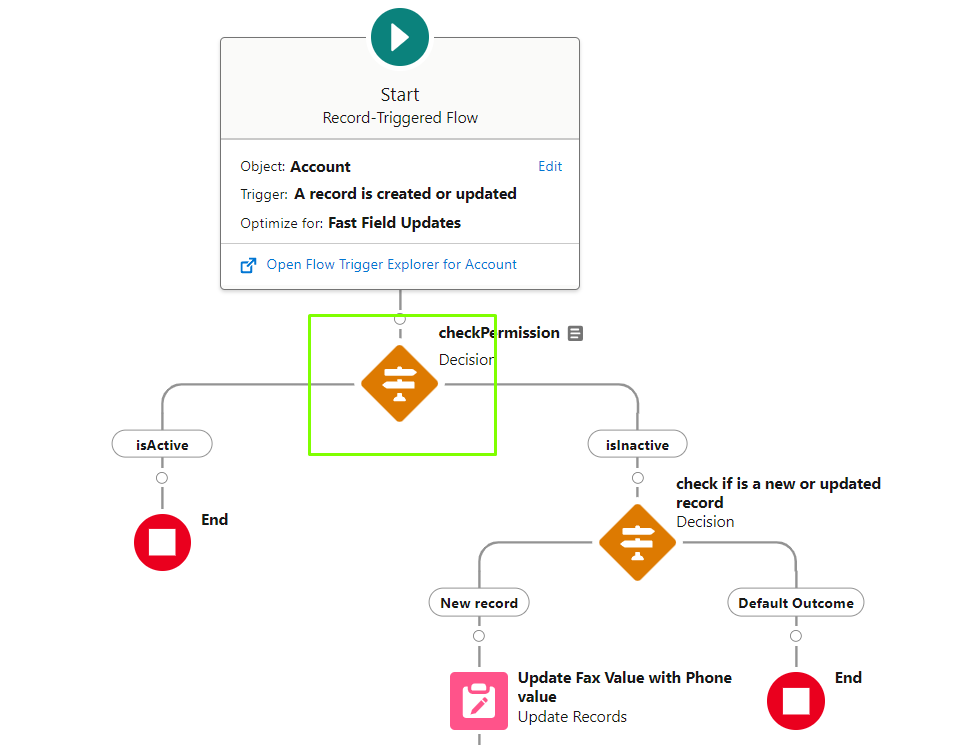

[Figure 16: Decision Step details]
- For Validation Rules
For this example, we define a validation rule on Account object, and that validation should be fired for all users except System Administrator. So, we can do something like you see in the image (Figure 17):

- Component Visibility
If it is required to show some component just for some users, you could use a conditional rendering option on your component. Check the next example.
On Account object go to “Gear” -> Edit Page” (Figure 18).


In the filter type selected “Permission” and select our global custom permission related to the system administrator user (Figure 21).


Conclusion
Custom permissions offer a wide array of opportunities for enhancing processes and user interactions, whether through declarative setups or coding implementations. They provide you with autonomy over your custom solutions, eliminating the need to rely solely on predefined permissions and granting you the flexibility to tailor access rights to suit your specific requirements.
Next Chapter “Custom Metadata Types”: Dynamic Control of Automations on Salesforce (chapter 2 of 3)
Note: You could check all the metadata and code I used for this example on this repository on github: cristiaan30033/Salesforce-Dynamic-Control-of-Automations: Examples how to implements controls for triggers, validations rules, etc. on salesforce platform (github.com)
Why you should augment your team with Folder IT
Outsourcing or Augmenting your Salesforce Team with Folder IT professionals is a cost effective solution that does not sacrifice on quality nor communication effectiveness. Our teams are qualified for working with all the latest technologies and for joining you right away.
Request a quote now for outsourcing your project or staff augmentation services to Argentina.
